In many VPS-related communities, you will often see statements like:
Just check the st value in the top command to see how much a VPS is oversold.
Some people even believe:
- st = 10% means 10% overselling
- st = 50% means 50% overselling
- st = 70% means 70% overselling
In reality, this interpretation is not accurate.
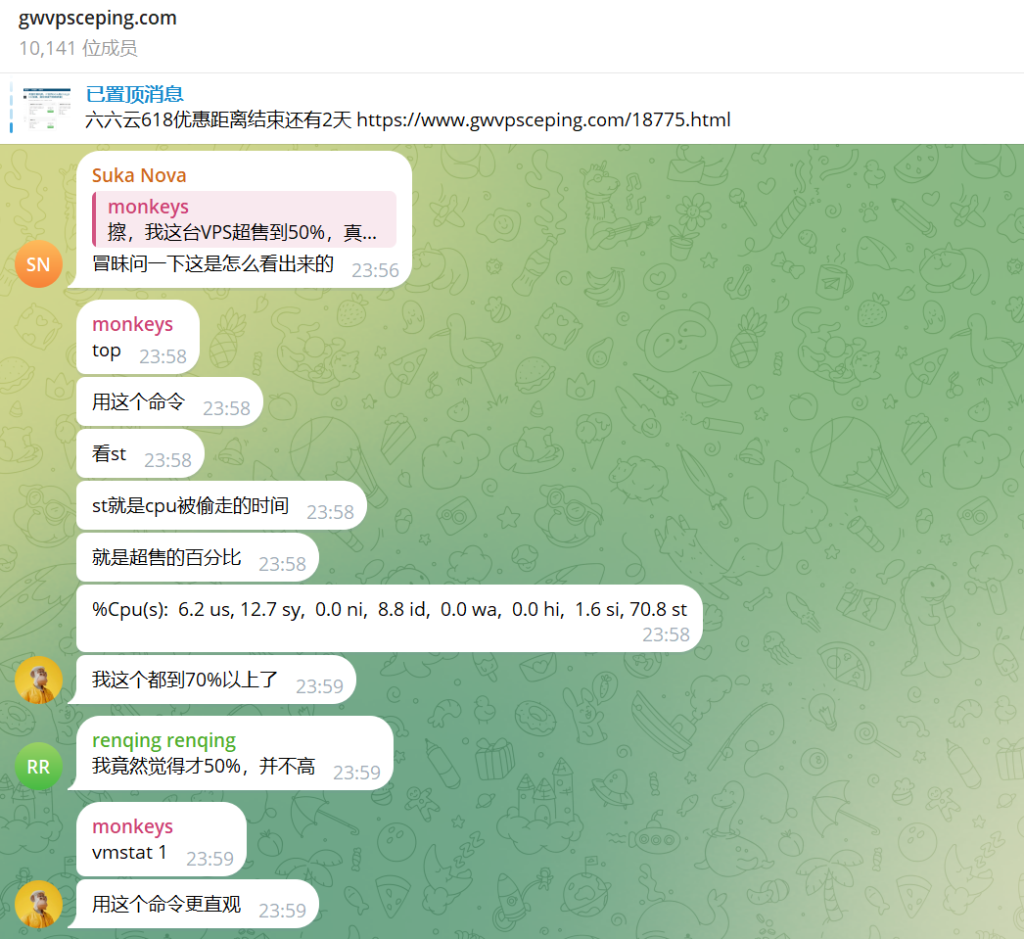
For VPS users, st (Steal Time) is indeed an important indicator for determining whether the host node is under resource pressure, but it cannot directly reveal the overselling ratio of the physical host. In this article, we’ll explain what st actually means and how to use it correctly when evaluating VPS performance.
What Is Steal Time (st)?
When running the following command in Linux:
top
You may see output similar to:
%Cpu(s): 6.2 us, 12.7 sy, 0.0 ni, 8.8 id, 0.0 wa, 0.0 hi, 1.6 si, 70.8 st
The fields represent:
| Parameter | Meaning |
|---|---|
| us | User CPU Time |
| sy | System CPU Time |
| ni | Nice Priority Process Time |
| id | Idle CPU Time |
| wa | I/O Wait Time |
| hi | Hardware Interrupt Time |
| si | Software Interrupt Time |
| st | Steal Time |
Steal Time is a metric specific to virtualized environments.
It represents:
The amount of time a virtual machine wanted to use the CPU, but the hypervisor scheduled that CPU time for another virtual machine instead.
In other words:
Steal Time measures how much CPU time has been “taken away” from your VPS by the host node.
What Does a High st Value Mean?
Assume your VPS needs to continuously utilize one CPU core.
Under ideal conditions:
CPU Required: 100%
CPU Received: 100%
Steal Time: 0%
If the host node becomes overloaded:
CPU Required: 100%
CPU Received: 50%
Steal Time: 50%
This means:
Your VPS spent approximately half of the time waiting because the CPU was allocated to other VPS instances.
Therefore, a high st value usually indicates:
- High host node load
- CPU resource contention between VPS instances
- Performance degradation on the current VPS
Does st Equal the Overselling Ratio?
The answer is no.
For example:
st = 50%
This only means:
Your VPS spent roughly half of its time waiting for CPU scheduling.
It does not mean:
Host node oversold by 50%
The reason is simple.
As a VPS user, you do not know:
- How many physical CPU cores the host actually has
- How many VPS instances are running on the node
- How many vCPUs have been allocated
- CPU scheduling policies
- CPU throttling rules
- Overall host node utilization
The actual overselling ratio is internal information only available to the provider.
For example:
Scenario 1
Physical CPU: 32 cores
Allocated vCPUs: 64 cores
Overselling ratio:
2:1
Scenario 2
Physical CPU: 32 cores
Allocated vCPUs: 320 cores
Overselling ratio:
10:1
Both scenarios could potentially produce similar st values.
Therefore:
st reflects CPU contention, but it cannot be used to directly calculate the host’s overselling ratio.
How to Check the st Metric
Method 1: top
top
Look for the:
st
field in the CPU statistics line.
Method 2: mpstat
Install the package:
apt install sysstat -y
or:
yum install sysstat -y
Then run:
mpstat 1
Example output:
%usr %nice %sys %iowait %irq %soft %steal %idle
Pay attention to:
%steal
This is the Steal Time metric.
Method 3: vmstat
vmstat 1
The output also includes an:
st
column showing Steal Time.
What st Values Are Considered Normal?
The acceptable range varies depending on workload, but the following guidelines are commonly used:
| st Value | Status |
|---|---|
| 0%–1% | Excellent |
| 1%–3% | Normal |
| 3%–5% | Minor Contention |
| 5%–10% | Performance Impact Begins |
| 10%–20% | Noticeable Resource Contention |
| 20%+ | Resource Pressure |
| 50%+ | Severe CPU Contention |
It’s important to note that a temporary spike in st does not necessarily indicate a problem.
Examples include:
- A neighboring VPS suddenly consuming large amounts of CPU
- Maintenance or background tasks running on the host node
- Temporary scheduling anomalies
For meaningful analysis, st should be monitored continuously for several minutes or longer.
How to More Accurately Determine Whether a VPS Is Heavily Oversold
Looking at st alone is not enough.
It is recommended to combine it with the following metrics:
CPU Benchmarking
For example:
sysbench cpu run
or:
yabs
Compare the results against the expected performance of the same CPU model.
Stress Testing
stress-ng --cpu 1 --timeout 60
While the test is running, monitor:
mpstat 1
If high Steal Time persists throughout the test, CPU contention is likely significant.
Testing at Different Times
Run tests during:
- Daytime
- Evening peak hours
- Late night or early morning
If st increases significantly during peak hours, the host node may be heavily shared or oversold.
Conclusion
Steal Time (st) is one of the most important metrics for VPS performance analysis.
It can help determine:
- Whether CPU time is being taken by the host node
- Whether resource contention exists
- Whether neighboring VPS instances are affecting performance
However, it is important to understand that:
st does not equal the overselling ratio.
The actual overselling ratio is known only to the hosting provider. What users can observe is the real-world impact of resource contention.
Therefore, when evaluating a VPS, a more reliable approach is to combine Steal Time metrics, CPU benchmarks, stress tests, and long-term monitoring data rather than assuming that the st value directly represents the percentage of overselling.