11000人交流群欢迎你加入:https://telegram.me/gwvpsceping

With the rapid development of AI, DeepSeek has gained significant attention as a powerful inference model. Due to API recharge limitations and occasional congestion in official apps, many users are turning to alternative solutions. One practical approach is using the DeepSeek inference service provided by SiliconFlow (in collaboration with Huawei Cloud Ascend). In this guide, we’ll walk through how to deploy and use DeepSeek via Open WebUI for a smooth experience.
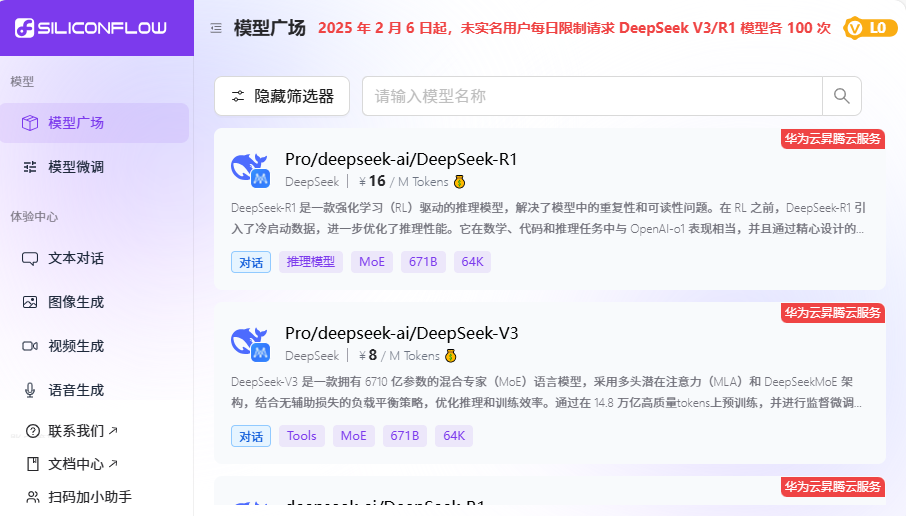
1. Register and Obtain SiliconFlow API Key
First, register an account on SiliconFlow: https://cloud.siliconflow.cn/i/CyIQa0sA After registration, you will receive 20 million tokens (approximately ¥14 balance). Then:- Log in to your account
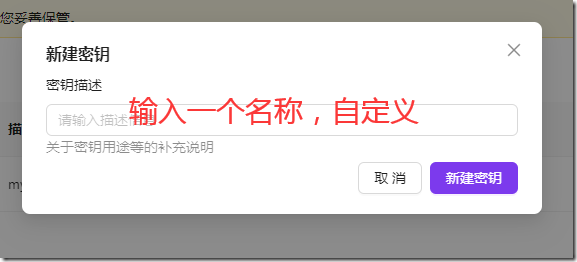
- Go to API Keys
- Create and save your API key (this will be used later)
2. Install Open WebUI (via Docker)
Open WebUI supports multiple installation methods. Here we use Docker for quick deployment (recommended for Debian 12 users).- Install Docker If Docker is not installed, refer to your previous setup guide.
- Run Open WebUI container Execute the following command:
docker run -d -p 3000:8080 \ --add-host=host.docker.internal:host-gateway \ -v open-webui:/app/backend/data \ --name open-webui \ --restart always \ ghcr.io/open-webui/open-webui:main
- Check container status:
docker ps
- Access Open WebUI in your browser: http://<your-server-ip>:3000
3. Deploy DeepSeek in Open WebUI
On your first visit:- Create an admin account (username, password, email)
- Log in to Open WebUI
- Go to Settings → Admin Panel
- Find External Connections
- Add SiliconFlow API:
- Paste your API key
- Set model ID (optional)
- If model ID is left blank, all available models will be loaded by default
- Return to the chat interface and select a model to start using DeepSeek
- How to register for SiliconFlow API? Visit the official website, register an account, receive free tokens, and generate your API key in the dashboard.
- Why use Docker for Open WebUI? Docker simplifies deployment, avoids dependency issues, and makes management easier.
- How to set model ID? In the admin panel under “External Connections,” you can specify a model ID. Leaving it blank loads all available models.
- How to improve long-term access stability? Set up Nginx with a domain and reverse proxy to provide stable and convenient access.