Introduction
This guide is designed for beginners who are using cloud servers (such as UCloud or similar VPS providers). It explains how to securely access your server via SSH, perform basic security hardening, and configure firewall rules to improve overall system safety and stability.
Whether you are deploying websites, applications, or development environments, it is strongly recommended to follow these steps after initial setup to avoid security risks from default configurations.
1. Deploying Your Cloud Server
After purchasing a VPS from UCloud or any cloud provider, make sure you have the following information:
- Public IP address
- SSH username (commonly
rootorubuntu) - Password or SSH key file
Official platform example:

2. SSH Remote Login to Your Server
1. Recommended Tools
- FinalShell (beginner-friendly)
- Xshell (advanced users)
- Windows Terminal (built-in on Windows)
2. SSH Command (Linux / macOS)
ssh root@your-server-ipOn first connection, type yes to accept the host fingerprint.
3. SSH Key Authentication (Recommended)
ssh -i /path/to/private-key root@your-server-ipUsing SSH keys is significantly more secure than password login.
3. Basic Server Security Hardening
1. Update the System
apt update && apt upgrade -yFor CentOS systems:
yum update -y2. Create a Non-Root User
It is recommended not to use the root account directly:
adduser admin
usermod -aG sudo admin
Then log in using:
ssh admin@your-server-ip3. Change Default SSH Port (Optional)
Edit the SSH configuration file:
nano /etc/ssh/sshd_configModify the port setting:
Port 2222Restart SSH service:
systemctl restart sshd4. Disable Root Login (Recommended)
Update configuration:
PermitRootLogin noRestart SSH:
systemctl restart sshd4. Firewall Configuration
1. Install UFW (Ubuntu Recommended)
apt install ufw -y2. Allow Required Ports
ufw allow 22/tcp
ufw allow 80/tcp
ufw allow 443/tcp
If you changed SSH port (e.g., 2222):
ufw allow 2222/tcp3. Enable Firewall
ufw enable4. Check Status
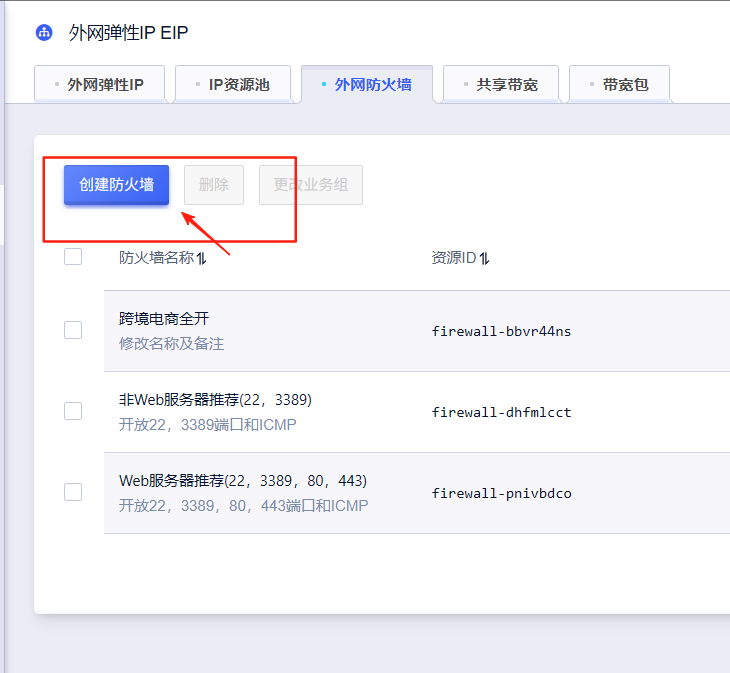
ufw status5. Cloud Security Group Configuration (Important)
In addition to system firewall rules, you must also configure security groups in your cloud provider panel:
- Allow SSH port (22 or custom port)
- Allow HTTP (80)
- Allow HTTPS (443)
5. Security Enhancements (Recommended)
1. Install Fail2ban (Brute-force Protection)
apt install fail2ban -yEnable service:
systemctl enable fail2ban
systemctl start fail2ban
2. Enable Automatic Security Updates
apt install unattended-upgrades -y3. Monitor Open Ports
netstat -tulnp6. Best Practices
- Avoid using root account for daily operations
- Use strong passwords or SSH key authentication
- Only open necessary ports
- Regularly update system packages
- Monitor login logs and firewall activity
Conclusion
After completing these steps, your cloud server will have a solid baseline security setup, including SSH hardening, firewall protection, and brute-force defense mechanisms.
These configurations are essential for any production or public-facing server to reduce attack risks and ensure stable long-term operation.