In cross-border e-commerce and international business, many companies and individuals choose cloud servers to build websites. WordPress, with its open-source, free, plugin-rich, and SEO-friendly advantages, has become the preferred platform for more than two-thirds of websites worldwide. Traditionally, setting up a WordPress site requires deploying a cloud server, installing an LNMP or LAMP stack, or manually using a panel like Baota. However, using Amazon Lightsail simplifies the process significantly, allowing you to deploy a WordPress international business site in just 5 minutes.
Moreover, newly registered Amazon Lightsail users can enjoy a 3-month free trial, reducing initial operational costs. This guide will show you how to quickly set up a WordPress site on Lightsail and bind a static IP and domain name.
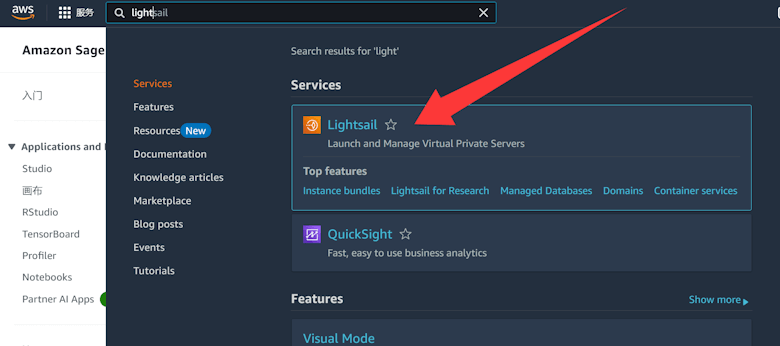
1. Sign Up for an Amazon Lightsail Account and Launch a Server
1.1 Apply for Free Lightsail Trial
If you are a new Amazon cloud user, you can apply for a 3-month free Lightsail trial. The application is available on the official website.
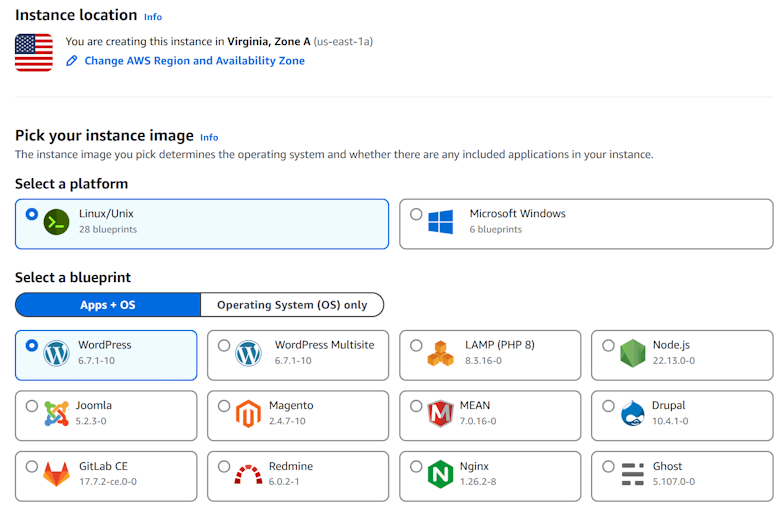
1.2 Choose Server Location and System Image
In the Lightsail console, select the server location (it’s recommended to choose a region close to your target customers). Then, under the image options, choose Apps + OS and select the WordPress image.
2. Configure Server Parameters and Launch Instance
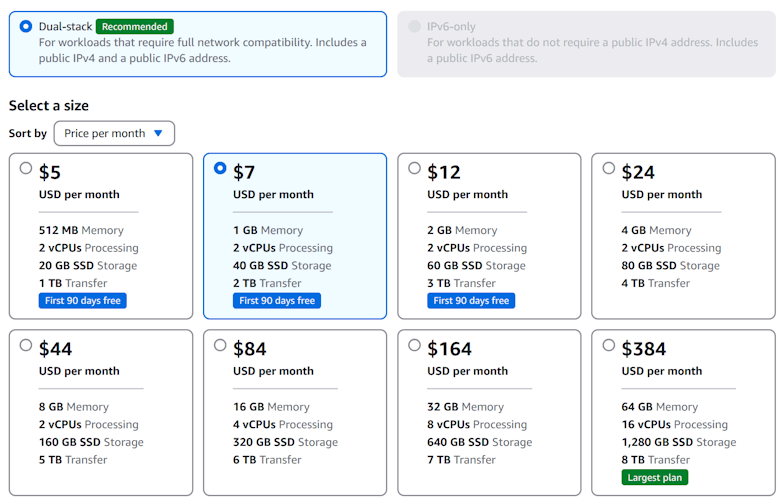
2.1 Choose the Right Plan
Amazon Lightsail offers multiple plans. The lowest plan comes with a 3-month free trial. Choose a configuration based on your needs. For example, 1GB RAM and 1 vCPU is sufficient for a lightweight international business site.
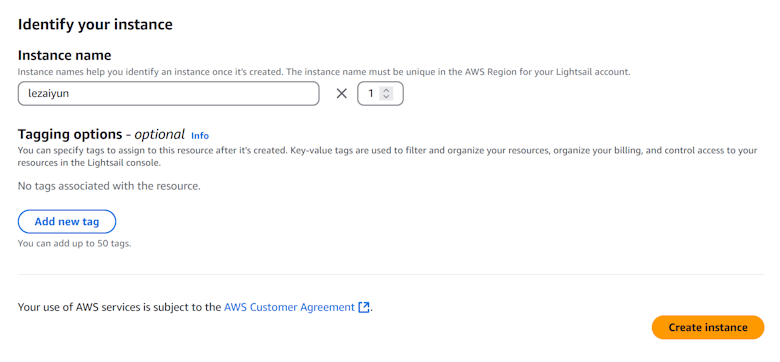
2.2 Set Instance Name and Create Instance
Enter a recognizable instance name and click create to launch your server.
3. Get WordPress Admin Login Information
Once the server is created, you need to retrieve the default WordPress username and password to log in to the dashboard.
3.1 Retrieve Default Password via SSH
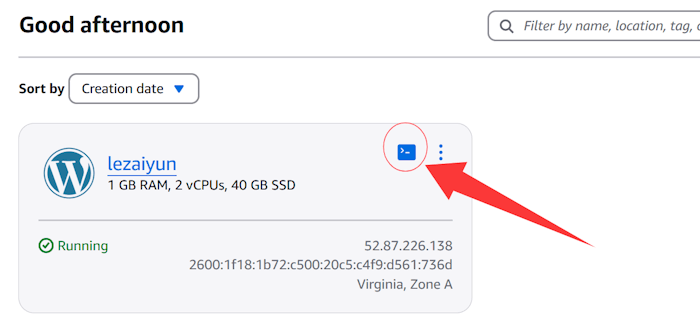
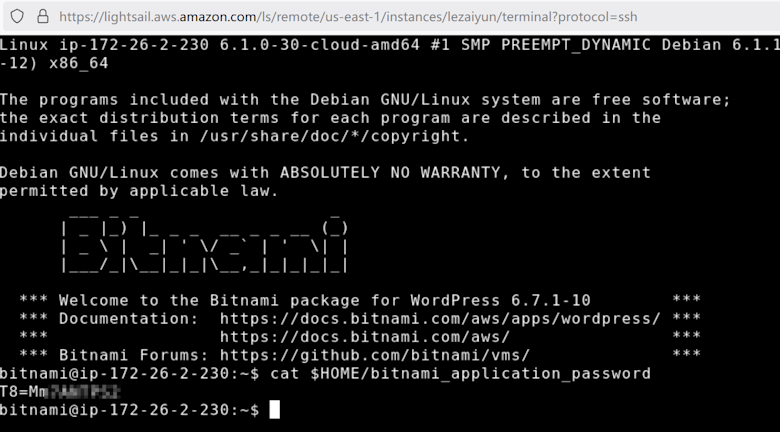
Use Lightsail’s web SSH terminal and run the following command to get the WordPress admin password:
cat $HOME/bitnami_application_password
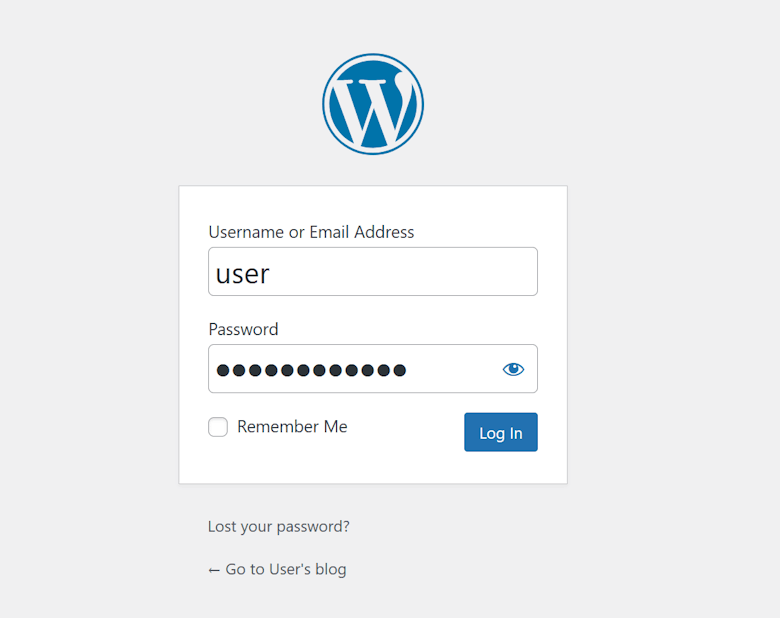
The default username is “user”. Append /wp-admin to your server’s IP address to access the dashboard (e.g., http://xxx.xxx.xxx.xxx/wp-admin).
4. Bind Static IP and Configure Domain Name
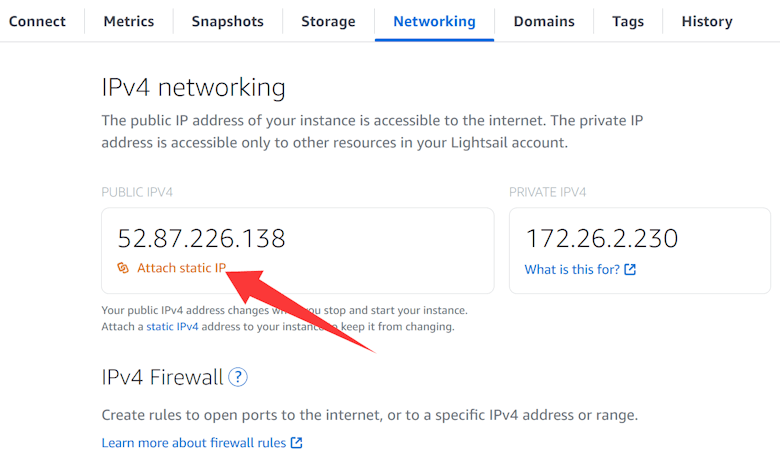
Lightsail servers use dynamic IPs by default, which change on each server restart. Therefore, you need to bind a static IP and point your domain to the server.
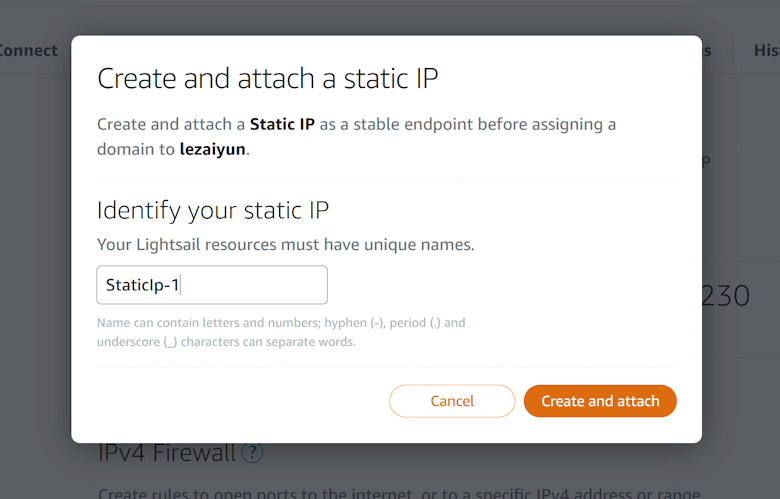
4.1 Allocate and Attach Static IP
In the Lightsail console under Networking, allocate a static IP and attach it to your WordPress instance.
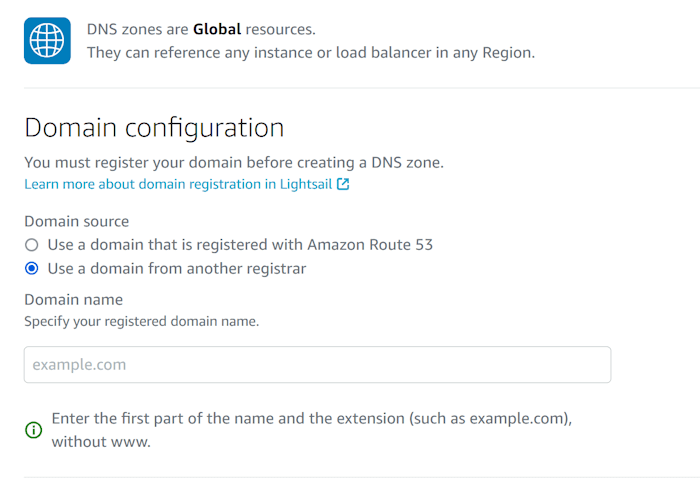
4.2 Configure Domain Name Resolution
Add a new domain or subdomain in the Lightsail DNS management page.
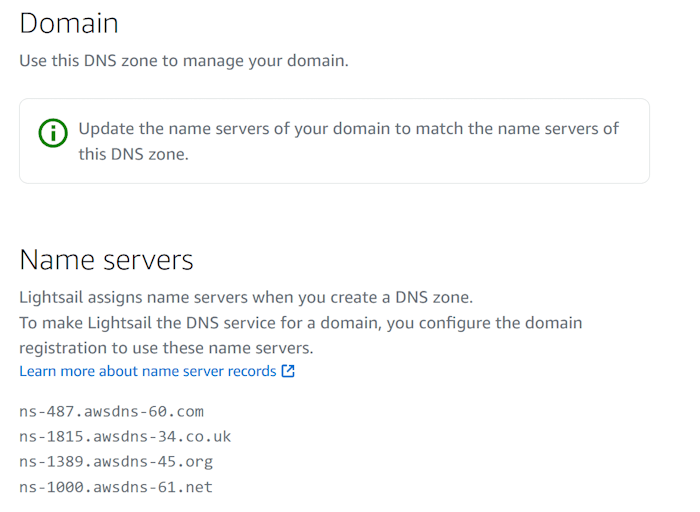
If using a third-party domain (e.g., Namecheap or Alibaba Cloud), update your DNS records to use the Lightsail nameservers.
Add an A record pointing the domain to the static IP so that the domain can access your WordPress site.
5. Start Building Your WordPress International Business Site
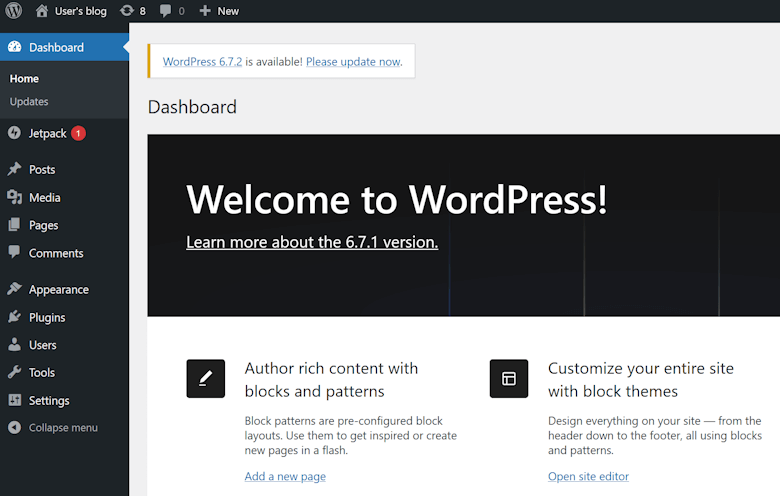
After completing the above steps, log in to your WordPress dashboard, install themes and plugins, and start optimizing your site content. Recommended plugins include:
Yoast SEO (optimize SEO for international business sites)
WP Super Cache (improve site loading speed)
Elementor (visual page builder)
FAQ
1. Why is Lightsail more suitable than EC2 for WordPress international business sites?
Lightsail provides one-click WordPress deployment, eliminating the tedious steps of manually configuring the server environment. EC2 requires users to manually install LAMP/LNMP stacks or panels, which is better for advanced custom needs.
2. How to try Amazon Lightsail for free?
New Amazon AWS users can get a 3-month free plan on Lightsail, supporting multiple instances, suitable for testing and deploying small international business sites.
3. Is the static IP free?
The first static IP attached to a server is free. Additional static IPs may incur charges. Refer to Amazon Lightsail official pricing for details.
4. How long does it take for domain binding to take effect?
Domain resolution usually takes a few minutes to a few hours, depending on the DNS update frequency of your domain registrar.
Following these steps, businesses and individual site owners can quickly set up an Amazon Lightsail WordPress international business site with a static IP and custom domain. Combined with SEO optimization and site acceleration tools, you can build an efficient and stable cross-border e-commerce platform!